
Getting started
Connect Figma Desktop to an AI agent via the local MCP bridge.
Supported MCP clients (setup details): Connect AI agents — Cursor, Claude Code, Codex, Qoder, CodeBuddy, Trae.
Requirements
- Figma Desktop (recommended; browser tabs may sleep and drop WebSockets)
- Node.js ≥ 20
- pnpm ≥ 9 (for building from source)
- An MCP-capable agent (Cursor / Claude Code / Codex / Qoder / CodeBuddy / Trae)
Path A — published packages (fastest)
1. Install the plugin
- Open the GitHub Releases page
- Download
figma-agent-plugin-vX.Y.Z.zip(match the MCP version you will run) - Unzip
- Figma Desktop → Plugins → Development → Import plugin from manifest…
- Select the unzipped
manifest.json - Run Plugins → Development → Figma Agent Kit
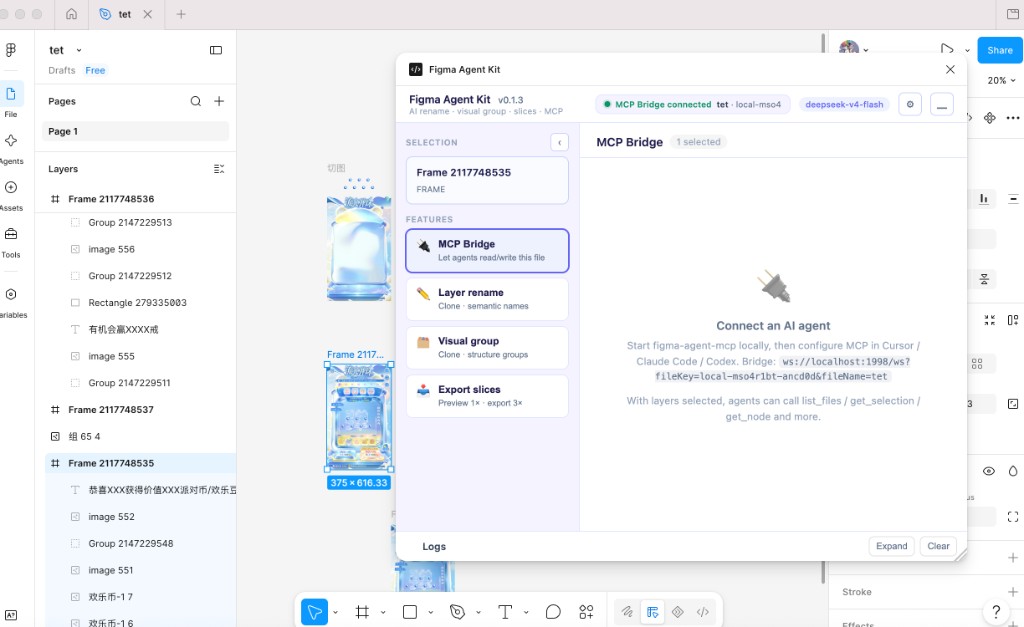
Confirm the bridge status indicator is green (or reconnects) once MCP is running:
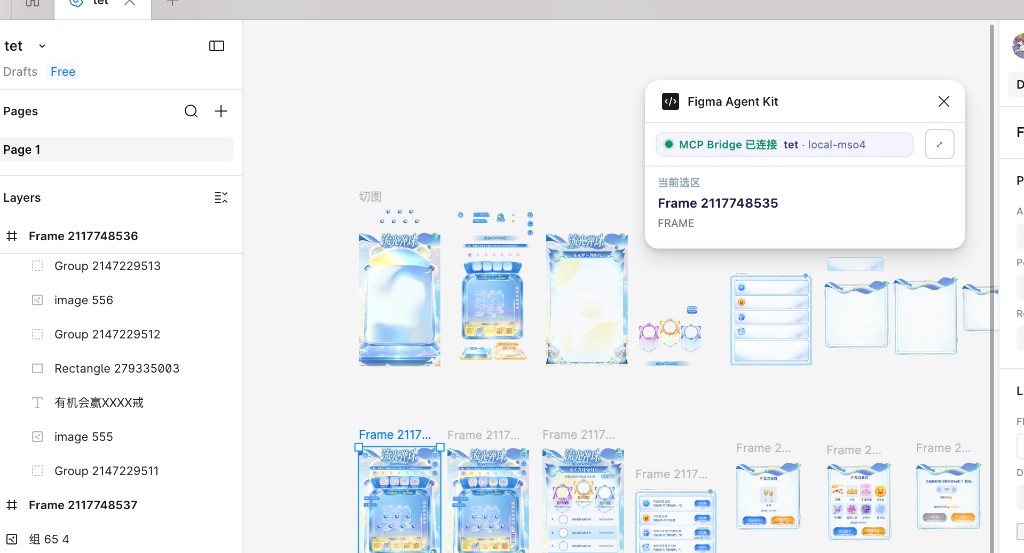
Use the header minimize control for a compact selection-only window:
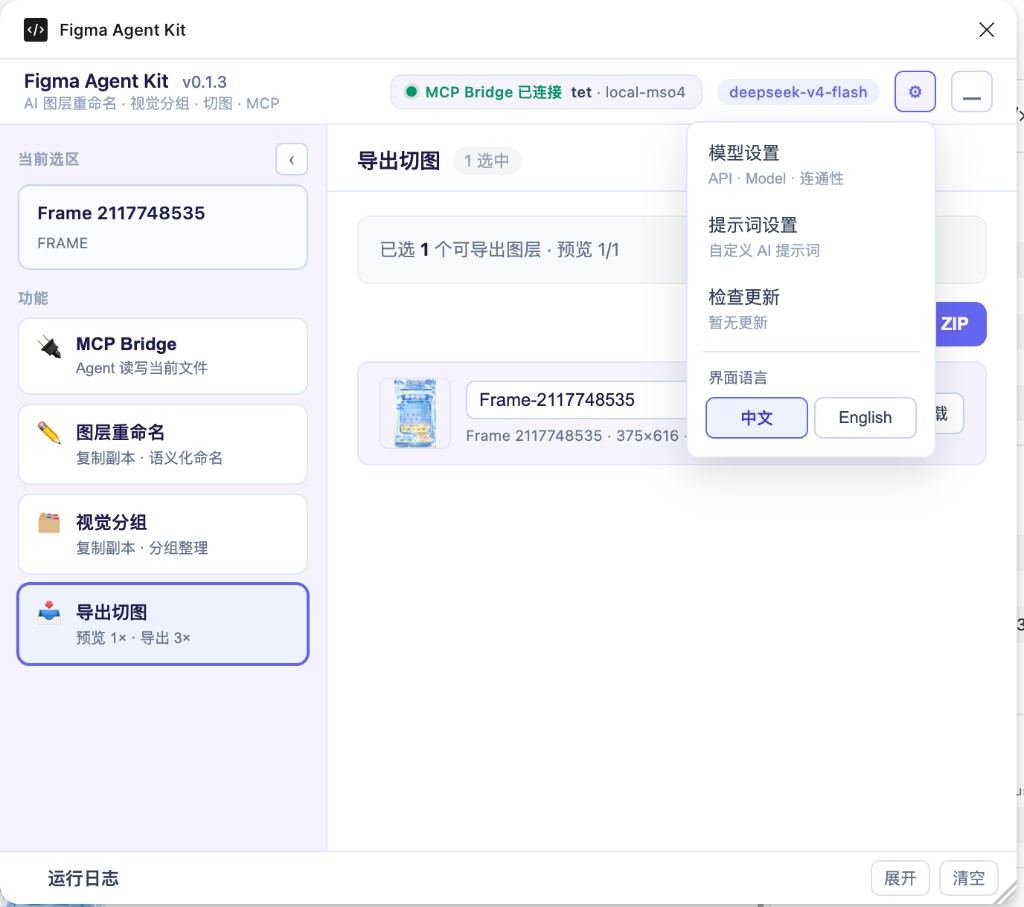
Gear menu (language, model, prompts, updates):
2. Configure the MCP server
Full per-client instructions: Connect AI agents (Cursor, Claude Code, Codex, Qoder, CodeBuddy, Trae).
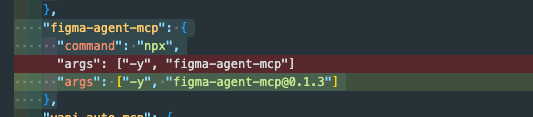
Cursor quick example — ~/.cursor/mcp.json or project .cursor/mcp.json:
Custom port (must match the plugin build):
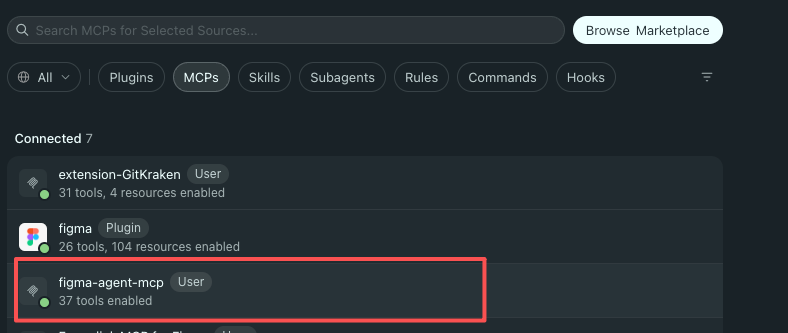
Restart the agent / MCP servers after editing. In Cursor’s MCP panel you should see 37 tools enabled:
3. Smoke test
Ask the agent to:
list_files— should show your open fileget_selection— select a frame firstget_node/get_screenshot— verify read path- Optionally
save_screenshotswithscale: 3,compress: true
Path B — develop from source
Import the plugin from:
Start MCP manually (optional while iterating):
Or point Cursor at the built binary:
Watch mode:
After UI/bridge changes: reload the plugin in Figma and restart MCP clients.
Port sync
Default bridge port is 1998 from bridge.config.json.
If you change the port: sync → rebuild plugin → re-import / reload → restart MCP with matching FIGMA_AGENT_MCP_PORT.
Optional: in-plugin AI
Rename and visual grouping need an OpenAI-compatible API key in the plugin settings. See AI features.
MCP bridge tools do not require that key.
Slice export (plugin UI)
See Exporting slices for 1× preview / 3× PNG + ZIP from the plugin panel.