
Connect AI agents
How to register figma-agent-mcp in popular MCP clients. Install the Figma plugin first and keep the bridge green before testing tools.
Shared prerequisites
- Node.js ≥ 20 on your PATH (
node -v,npx -v) - Figma Desktop + Figma Agent Kit plugin running (MCP Bridge connected)
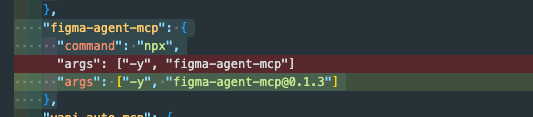
- Prefer unpinned
npx -y figma-agent-mcp(always latest); pin with@x.y.zonly for frozen installs - Optional custom bridge port (must match the plugin):
Common stdio snippet (JSON clients)
Most editors accept this shape under mcpServers:
Smoke test (any client)
With a frame selected in Figma, ask the agent to:
list_filesget_selectionget_node/get_screenshot
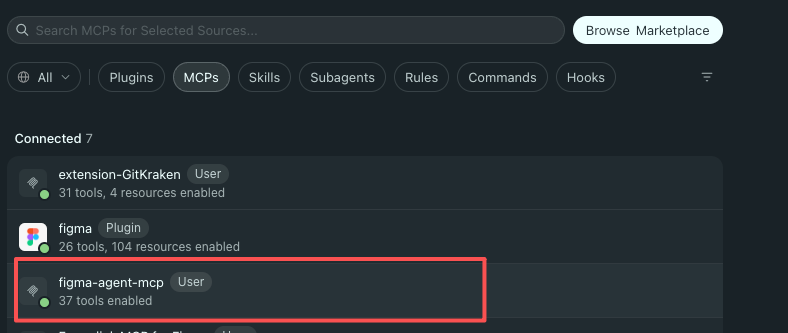
You should see 37 tools once the MCP process is healthy.
Cursor
Docs / UI: Cursor Settings → MCP (or edit JSON directly).
Paste the common JSON snippet, save, then restart / refresh MCP.
Verify in Cursor’s MCP list: figma-agent-mcp · 37 tools enabled.
Claude Code
Official guide: Claude Code MCP quickstart
CLI (recommended)
Custom port:
Config files
Example .mcp.json:
Restart Claude Code, then run /mcp to confirm the server is connected. Approve project .mcp.json servers on first use if prompted.
Codex (OpenAI)
Official guide: Codex MCP
Codex uses TOML (~/.codex/config.toml, or project .codex/config.toml for trusted projects). ChatGPT desktop / Codex CLI / IDE extension share this config.
CLI
config.toml
With env:
Restart Codex / the IDE extension after editing.
Qoder
Official guide: Qoder MCP
- Open Qoder Settings (avatar, or
⌘⇧,/Ctrl+Shift+,) - Left nav → MCP
- My Servers → + Add
- Paste the common JSON snippet (STDIO: command
npx, args as above) - Save — a link icon means connected; expand to see tools
Use Agent mode in Chat so the model can call MCP tools (confirm prompts as needed).
Alternatively browse MCP Square if the server appears there; for this package, manual STDIO add is the reliable path.
CodeBuddy
Official guide: CodeBuddy Config MCP
- Sidebar chat → CodeBuddy Settings (top-right)
- Open the MCP tab
- Add MCP (or install from MCP Market if listed)
- Paste JSON, for example:
- Confirm green status; optional Try to Run, then use Craft Agent with Figma open
Trae
Official guide: Trae — Add MCP servers · 中文
UI (global)
- Settings → MCP
- Add → Add Manually (or marketplace if available)
- Paste the common JSON snippet and confirm
You can also open Raw Config (JSON) and merge into Trae’s mcp.json.
Project-level
- Create
.trae/mcp.jsonin the project root with the samemcpServersJSON - In Settings → MCP, enable project-level MCP if your Trae build exposes that toggle
SOLO / Work mode: if tools are flaky, prefer project-level config and explicitly ask the agent to use figma-agent-mcp / list_files.
Local build instead of npx
Point any JSON client at a built binary:
Codex TOML:
See Getting started — from source.
Troubleshooting
More: FAQ.